How to post to Instagram from a PC
Instagram's website has slowly added posting, but it still leaves most of the job undone on desktop. Here's how to upload photos, carousels, reels and stories from a computer properly — without a phone and without an emulator.
What Instagram's website actually lets you do
It's worth being precise, because a lot of guides on this topic are years out of date. Instagram's web app does now let you upload a photo, a carousel and a basic reel. What it still doesn't give you on desktop is the rest of the workflow:
- Stories from the website aren't reliably there: guides disagree, so check your Create menu
- No scheduling — you post now, or you don't post
- No cover-frame picker for reels, so you're stuck with whatever frame it chooses
- No way to put hashtags in the first comment automatically
- Limited audio, and no way to see what audio is actually working in your niche
So the honest answer to "can I post to Instagram from my PC" is: partly, natively — and fully, with an extension that fills in the gaps.
The old workarounds, and why they're bad
Before covering the straightforward method, it's worth knowing why the two most common pieces of advice aren't great.
Faking a mobile browser with DevTools
Pressing F12 and switching to the device toolbar does get you a mobile-shaped Instagram with an upload button. It works, roughly. But you lose it every time you reload, video upload is unreliable, and you're driving a phone interface with a mouse. Fine once; miserable as a routine.
Android emulators
BlueStacks and similar will run the real app, which means everything works. The cost is several gigabytes of software, a lot of RAM, and signing into your Instagram account inside a third-party Android environment. That's a big security surface for the sake of posting a photo.
The direct method: post from the desktop in your normal browser
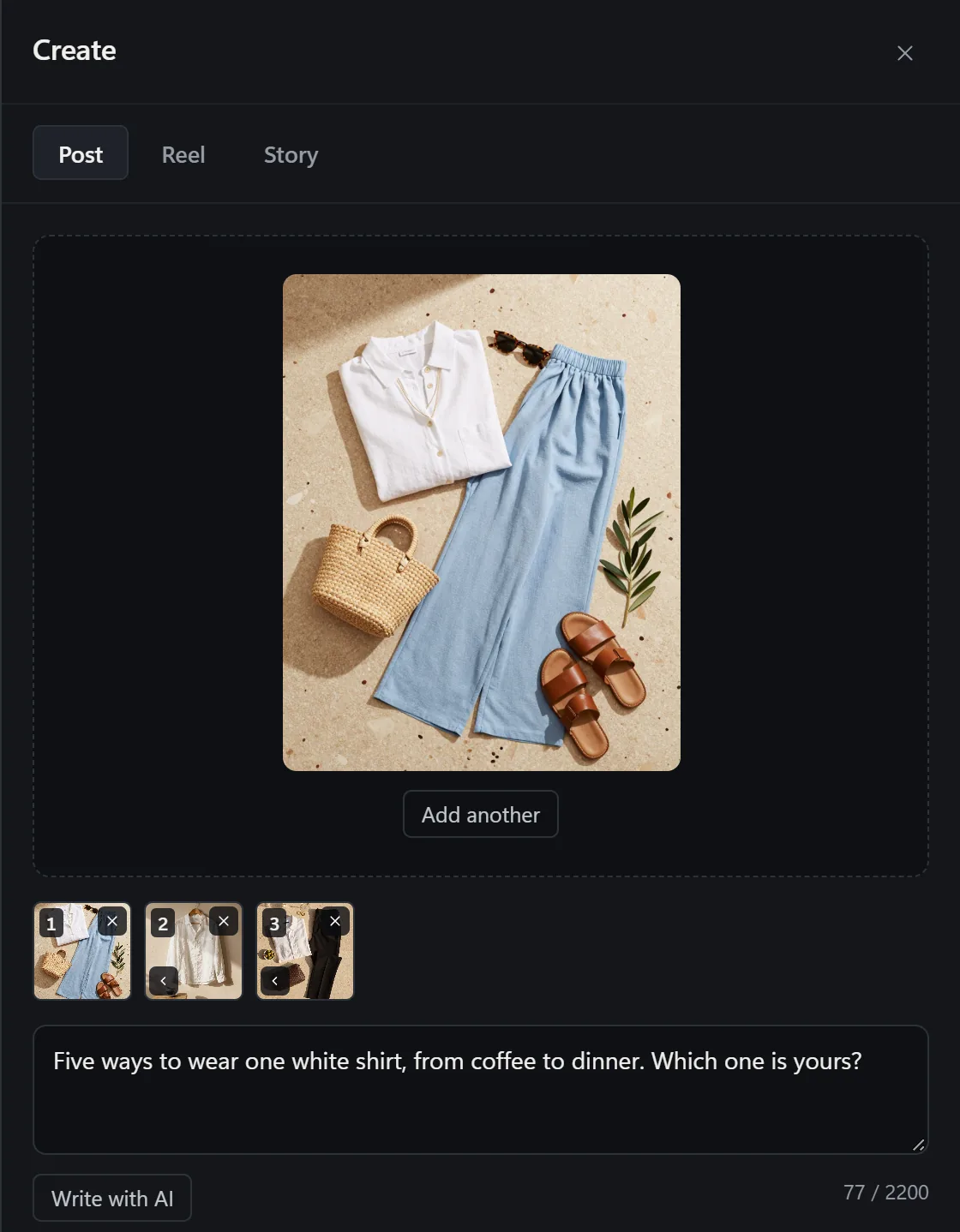
InstaDesk adds a publishing panel inside instagram.com itself. You stay signed in as you normally are, in your normal browser, and the upload happens through Instagram's own interface — no emulator, no separate account, no password to hand over.
- Install the extension and open instagram.com. Refresh once if the tab was already open.
- Click the InstaDesk launcher, then Post, reel or story.
- Pick the tab you want — Post, Reel or Story.
- Drag your files in from Explorer or Finder, or click Choose from computer. A post takes up to 10 photos or videos as a carousel.
- For a reel, drag the Cover frame slider to choose exactly which frame shows on your grid.
- Write your caption. Use the tabs underneath for Music, Tag people, Location and Options.
- Hit Share — or open the Schedule tab to send it later.
Things worth turning on while you're there
- Hashtags in the first comment — keeps the caption clean, posts automatically right after publishing.
- Alt text — takes ten seconds and matters more than most people think.
- Collaborators — tag another account so the post appears on both grids.
- Turn off commenting or hide like counts before the post goes out, rather than after.
Common problems
Nothing appears after installing
Refresh the Instagram tab. Content scripts only attach on page load, so a tab that was already open when you installed won't have it yet.
My video was rejected
Instagram is fussy about codecs. MP4 with H.264 video and AAC audio is the safe combination. Anything exported "for web" from a normal editor will be fine.
Do I need to give up my password?
No — and you shouldn't to any tool. InstaDesk works through the session already logged into your browser. It never asks for your Instagram password, and there's no account to create with it. Posting goes through that session, and your files go straight from your computer to Instagram. What reaches InstaDesk's relay is your account's ID with a count of the free uses you have spent, daily totals with no ids (the upgrade screen, checkout and, unless you switch them off in Settings, which tools are opened and which errors come up) and, when you use the AI features, the text they need and a daily count of requests; the privacy policy lists all of it.
More guides
- How to reply to Instagram comments and DMs with AI drafts
- How to add music to a reel on desktop
- How to schedule Instagram posts
- How to download Instagram reels and videos
- How to see who unfollowed you
- How to export your Instagram followers
- How to find bot followers
- How to choose Instagram hashtags
- Looking for an INSSIST alternative?
- How to add a link to an Instagram story from your PC
- How to post an Instagram story from your PC
- How to add music to an Instagram story on PC
- How to post reels from your PC
- How to post an Instagram carousel from your PC
- How to pick a custom Instagram reel cover
- How to view Instagram stories anonymously
- How to use Instagram on a Mac or Chromebook