How to schedule Instagram posts
Instagram's own scheduling is limited to professional accounts through Meta Business Suite, and it won't touch a lot of what creators actually post. Here's how to schedule from your desktop instead — and the one trade-off you need to understand before you rely on it.
Two kinds of scheduler
This distinction matters more than any feature list, so it's worth getting straight first.
Cloud schedulers
You upload your media to a company's servers. At the scheduled time their servers publish it through Instagram's official API. Your computer can be off. The costs: your unpublished content sits on someone else's infrastructure, you need a professional account connected via Facebook, and the API restricts what can be posted.
Browser schedulers
Your media stays on your own machine, and the post is published from your browser at the scheduled time, as you. Nothing is uploaded anywhere in advance, no account connection is required, and there's no API restriction on formats. The cost is the trade-off below.
Scheduling a post
- Open instagram.com with InstaDesk installed.
- Open InstaDesk’s menu from its button on the page and press Post or reel (or Post a story with a link for a story). Build the post exactly as you would to publish now — media, caption, cover frame, music, tags.
- Open the Schedule tab instead of hitting Share.
- Pick a date and time and confirm. The post drops into the queue.
The calendar
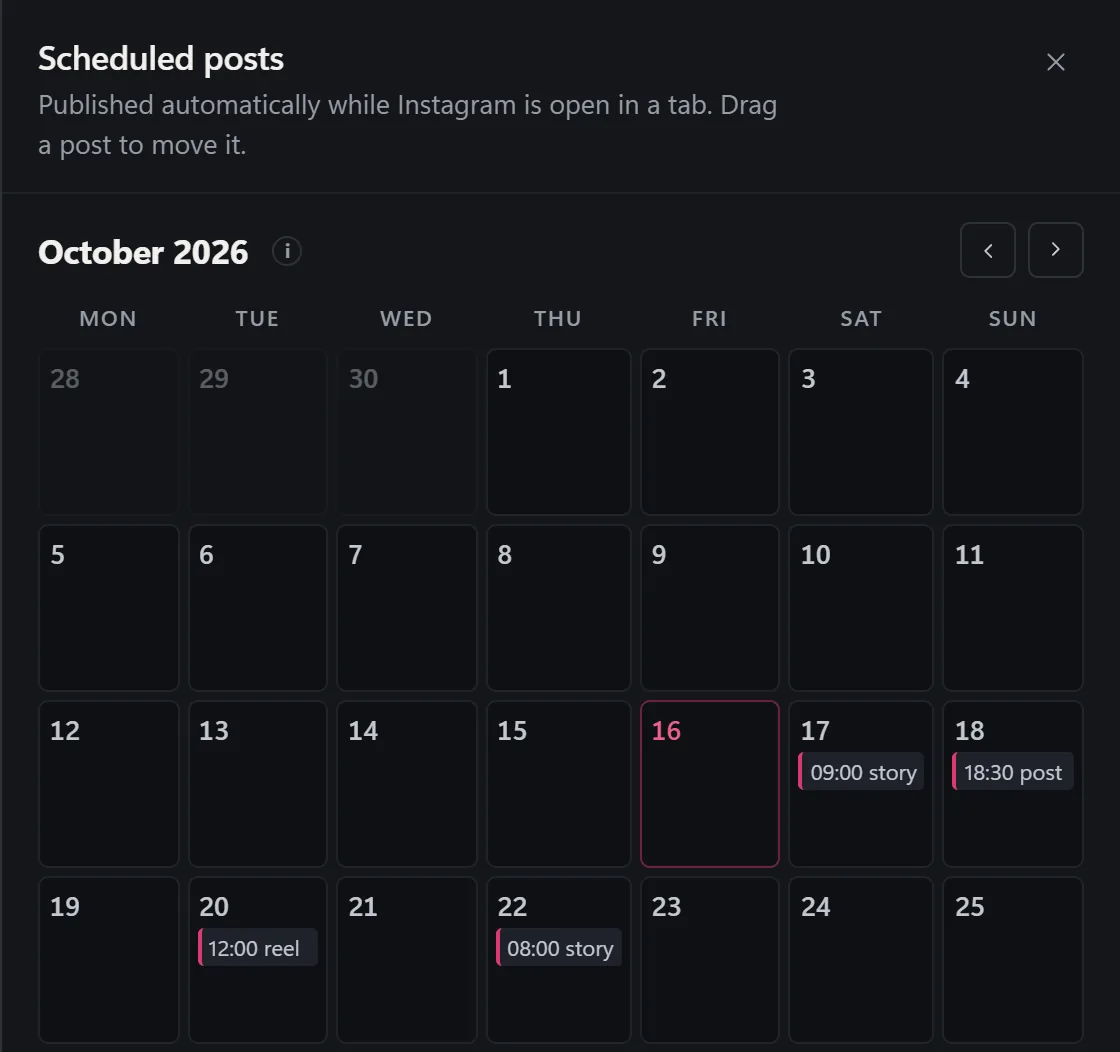
In InstaDesk’s menu, More tools → Scheduled posts opens a month view of everything queued. Drag a post onto a different day to move it; the time of day stays the same, which is usually what you want when you're rearranging a week.
Underneath, the queue lists each item with its status — Scheduled, Published or failed. Anything scheduled can be published early with Publish now, or dropped with Cancel. A failure tells you why rather than disappearing silently, which is the part that matters when you're trusting a queue.
Free and Pro
On the free plan, 2 scheduled posts can wait at a time; as one goes up, the slot is free again. A story set counts each of its frames still to go as one, so a 4-frame set takes 4. InstaDesk Pro, $14.50 a month, schedules as many as you like.
Queuing a batch
With Pro, drop a folder of files in at once and space them out — one a day, or every few hours. It's the fastest way to get a week of posting set up in a sitting, and the files stay on your machine until each one goes out.
Picking times that aren't nonsense
Ignore the universal "best time to post" charts. They're averages across every account on the platform and describe nobody. Your own audience data is in Account insights, and it beats any chart. Two things that hold up generally: consistency matters more than any specific hour, and posting when you can actually reply for the first thirty minutes beats posting at a theoretically optimal time you sleep through.
Common questions
Does this risk my account?
Scheduling itself is just a delayed post — it's the automation people bolt onto schedulers that causes bans. InstaDesk's scheduler does nothing but publish what you queued. Replies to comments and DMs exist only in Reply drafts, which is off until you read its notice and switch it on, and it only drafts: every reply waits for you to press Send, capped in the code. Liking happens only in Grow account, which can also follow, and in Reply drafts' optional liking of comments on your posts; both are off until you switch them on, capped, and entirely separate from scheduling. The built-in Activity log lets you verify all of that rather than take our word for it.
Can I schedule stories and reels, not just photos?
Yes — posts, carousels, reels and stories all queue the same way.
What if I close the browser?
Nothing is lost. The queue and your media are stored locally and survive restarts. The post publishes at its time if Instagram is open, or as soon as you next open it.
More guides
- How to reply to Instagram comments and DMs with AI drafts
- How to post to Instagram from a PC
- How to add music to a reel on desktop
- How to download Instagram reels and videos
- How to see who unfollowed you
- How to export your Instagram followers
- How to find bot followers
- How to choose Instagram hashtags
- Looking for an INSSIST alternative?
- How to add a link to an Instagram story from your PC
- How to post an Instagram story from your PC
- How to add music to an Instagram story on PC
- How to post reels from your PC
- How to post an Instagram carousel from your PC
- How to pick a custom Instagram reel cover
- How to view Instagram stories anonymously
- How to use Instagram on a Mac or Chromebook